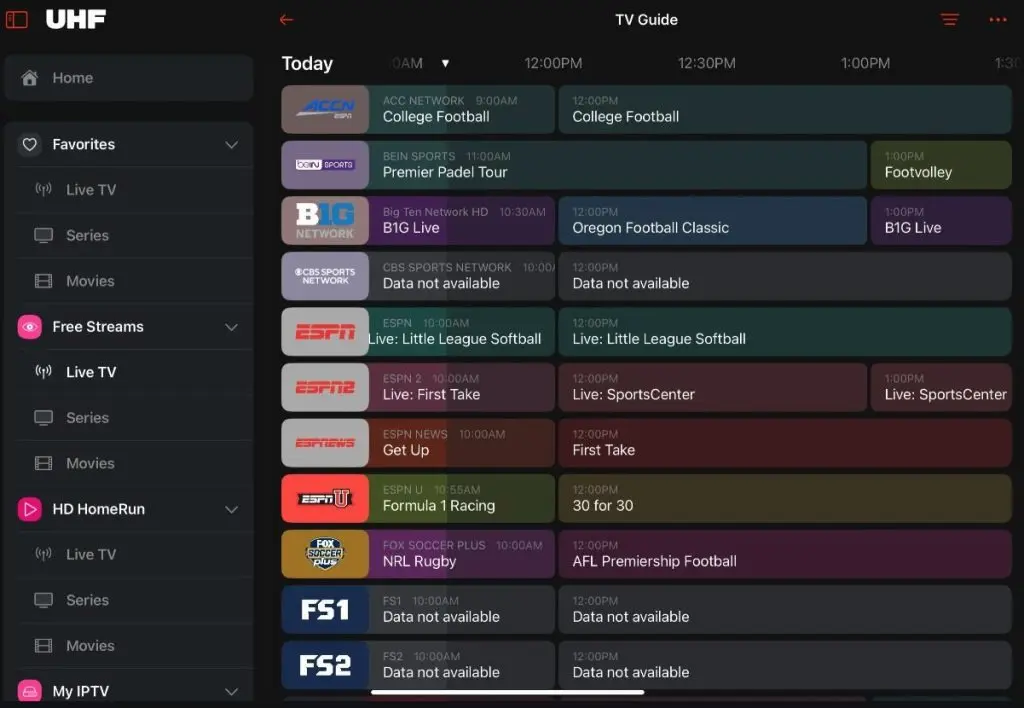
UHF IPTV Setup Guide
This UHF IPTV setup guide is designed to help you install and configure UHF IPTV quickly and easily on any device. Whether you are using a Smart TV, Android device, Firestick, iPhone, or computer, this guide will walk you through everything step by step.
UHF IPTV offers a smooth streaming experience with a simple setup process. You don’t need advanced technical knowledge — just follow the instructions and start watching in minutes.
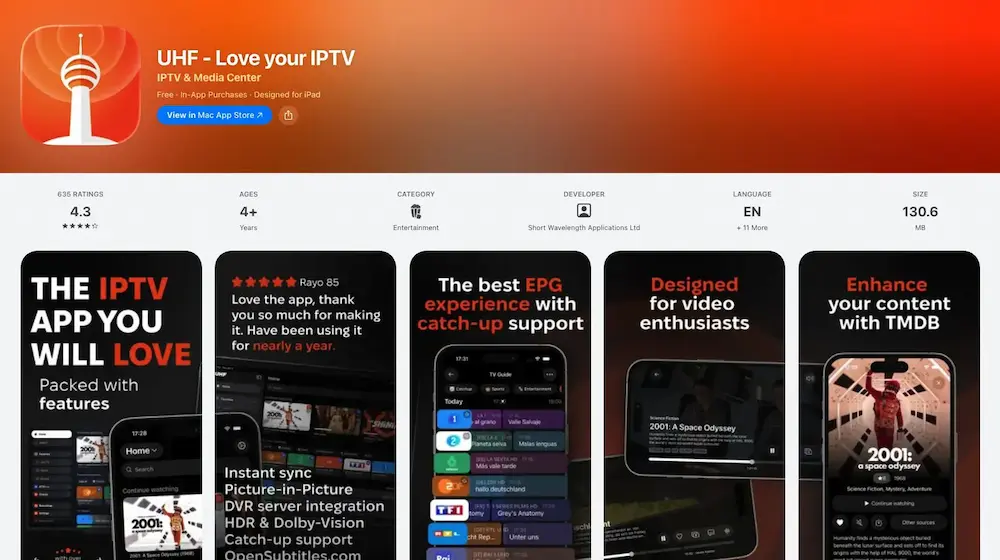
How to Install UHF IPTV App on Apple TV
This step-by-step UHF IPTV setup guide shows you exactly how to install, configure, and start using the UHF IPTV app on Apple TV 4K.
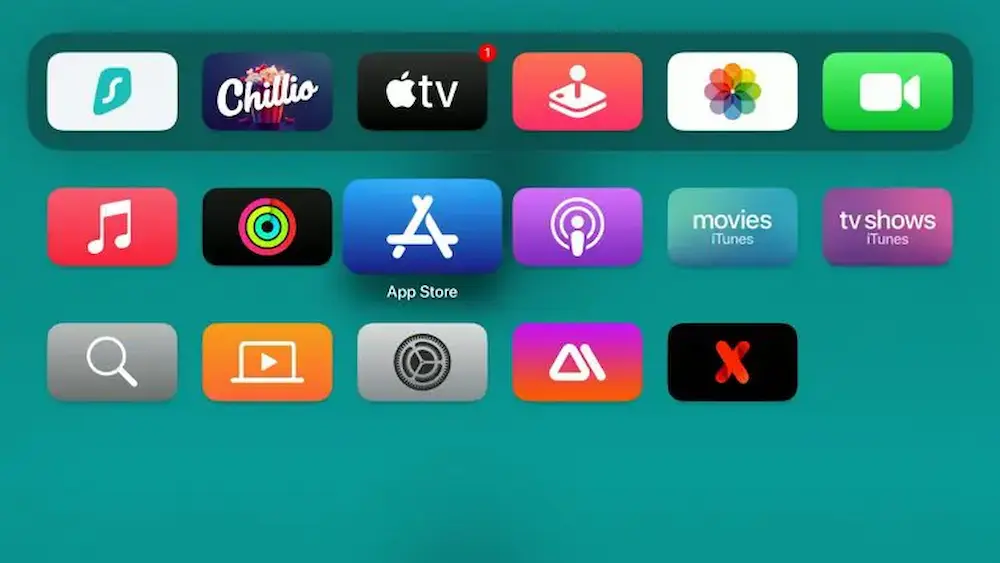
Open the App Store on Apple TV
From the home screen of your Apple TV 4K, click on the App Store to begin the installation process.
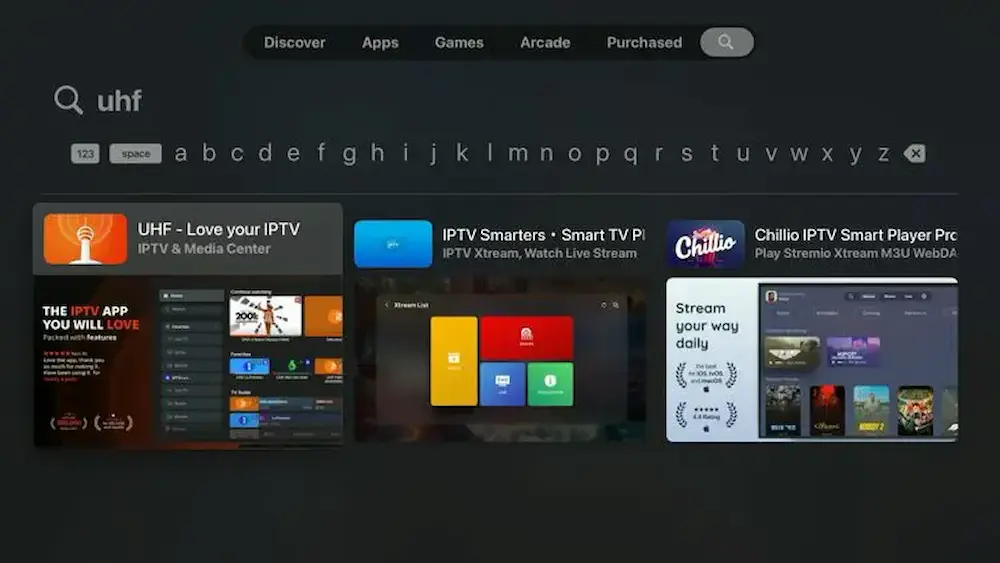
Search for UHF IPTV App
Use the search function in the App Store and type UHF IPTV to find the app.
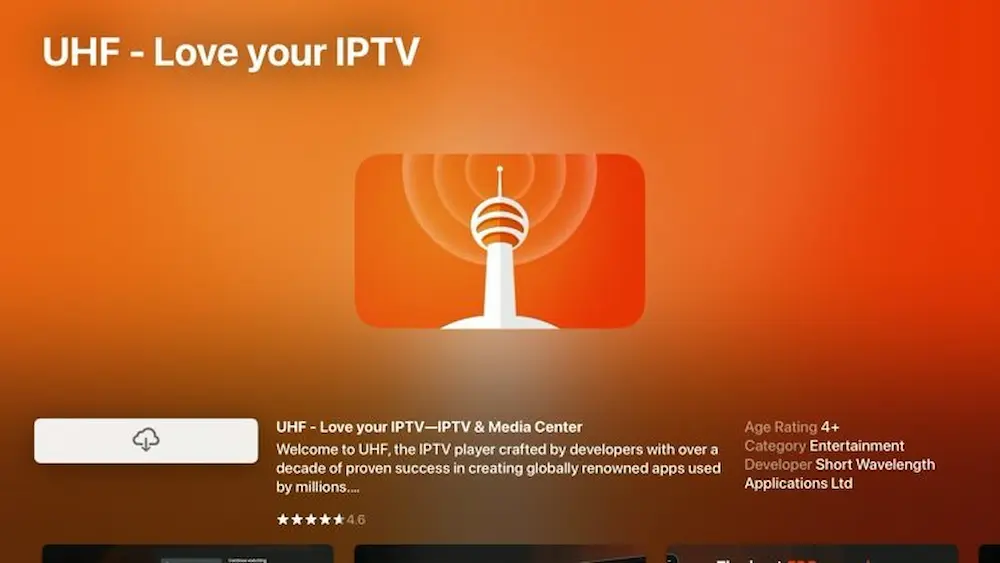
Install the UHF IPTV App
Select the app and click Install. Wait for the app to download and install.
Best IPTV Service for Live Sports & Movies
UHF IPTV provides the best IPTV service with premium live sports, latest movies, TV series, and worldwide channels in HD and 4K quality. Watch football, UFC, Netflix series, and more with stable servers and zero buffering.

Live Sports Channels
- ⚽ Premier League, La Liga, Champions League
- 🏀 NBA, EuroLeague
- 🥊 UFC, Boxing, WWE
- 🎾 Tennis, Formula 1, MotoGP
- 🏈 NFL & International Sports

Movies & TV Series
- 🎬 Latest Hollywood & Bollywood Movies
- 🎥 Netflix, Prime, Disney+ Series
- 🌍 Arabic, Turkish, Korean Shows
- 👨👩👧👦 Kids & Family Content
- 📺 4K, Full HD, HD Quality

Worldwide TV Channels
- 🌎 25,000+ Live IPTV Channels
- 📰 News, Documentary, Sports TV
- 🎵 Music & Entertainment
- 🕌 Religious & Cultural Channels
- 📡 Europe, USA, Africa, Asia
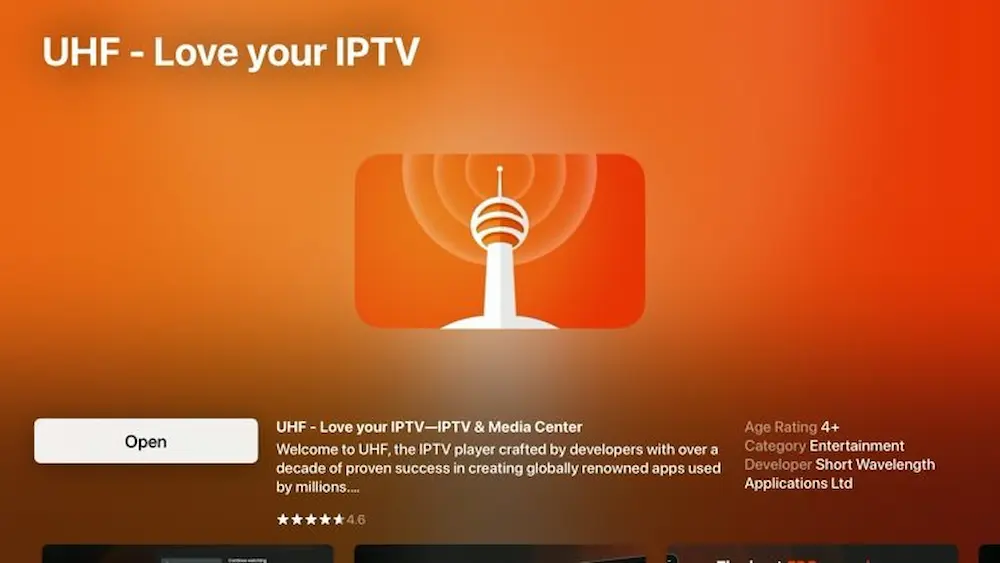
Open the UHF IPTV App
After the installation is complete, click Open to launch the UHF IPTV app on your Apple TV.
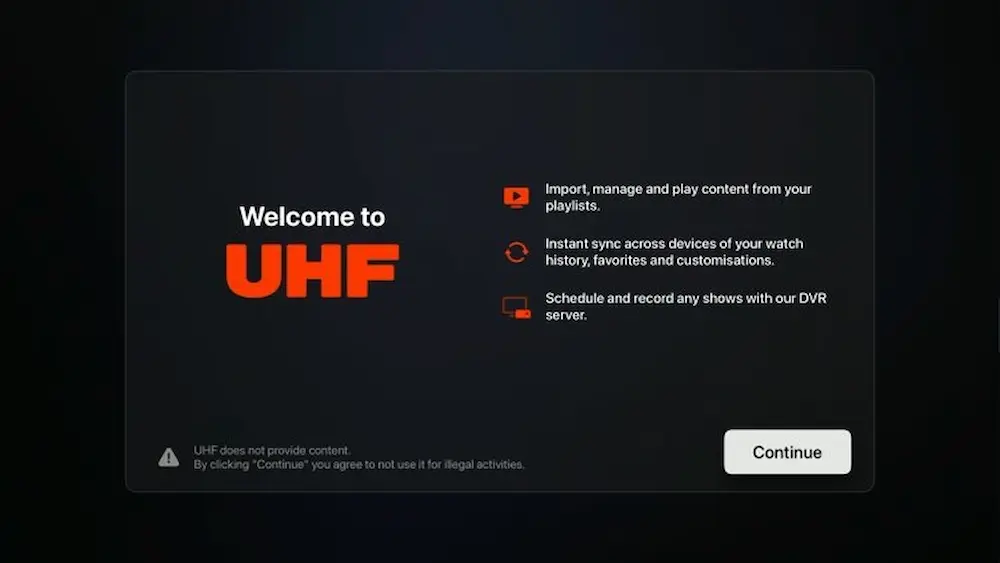
Click on Continue
When the app opens for the first time, press Continue to proceed with the setup process.
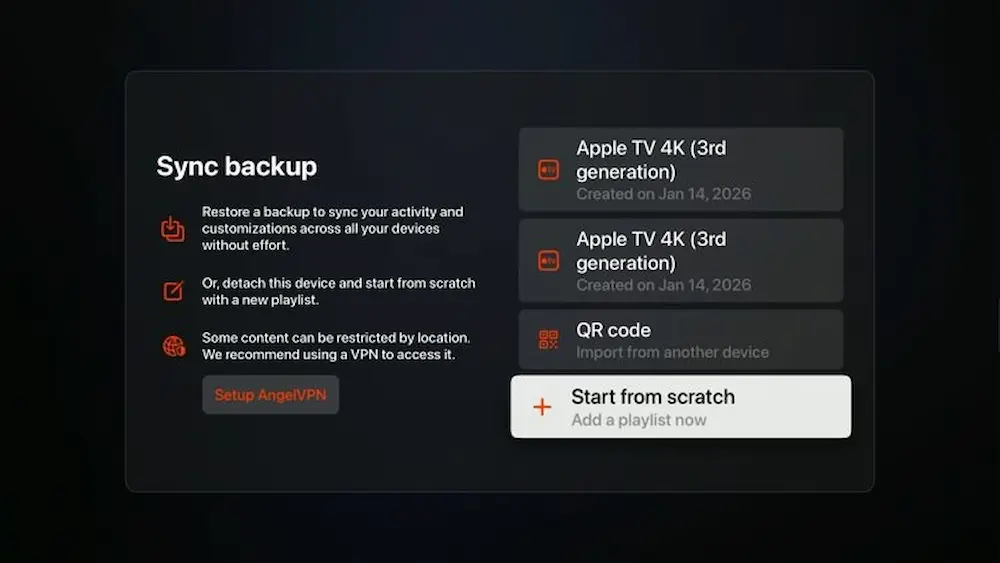
Choose Start From Scratch
Select Start From Scratch to add your IPTV details manually and ensure a clean setup.
Select Xtream Codes Login
Choose Xtream Codes as your login method for the fastest and most stable IPTV experience.
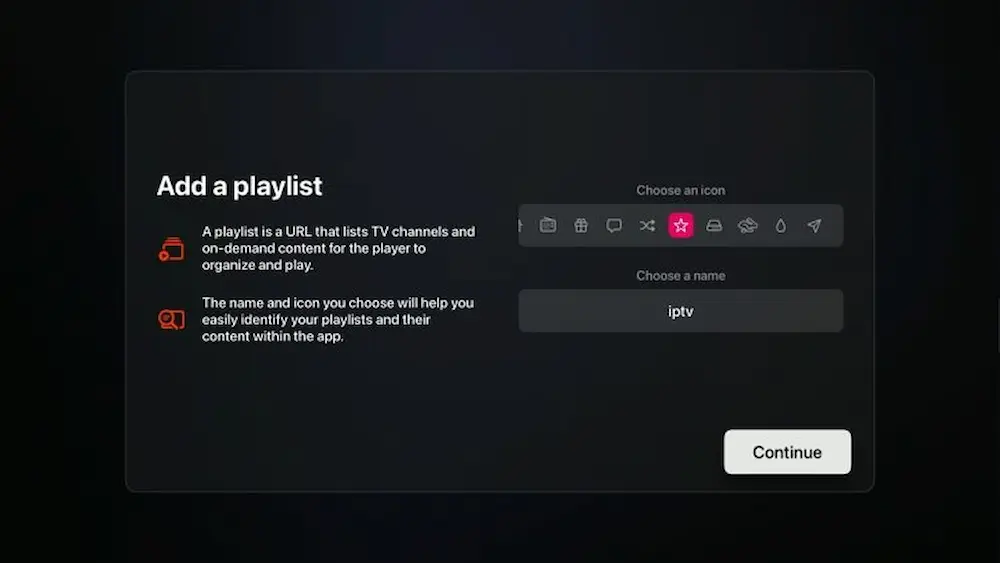
Enter Your Xtream Codes Details
Enter the Username, Password, and Server URL provided by UHF IPTV.
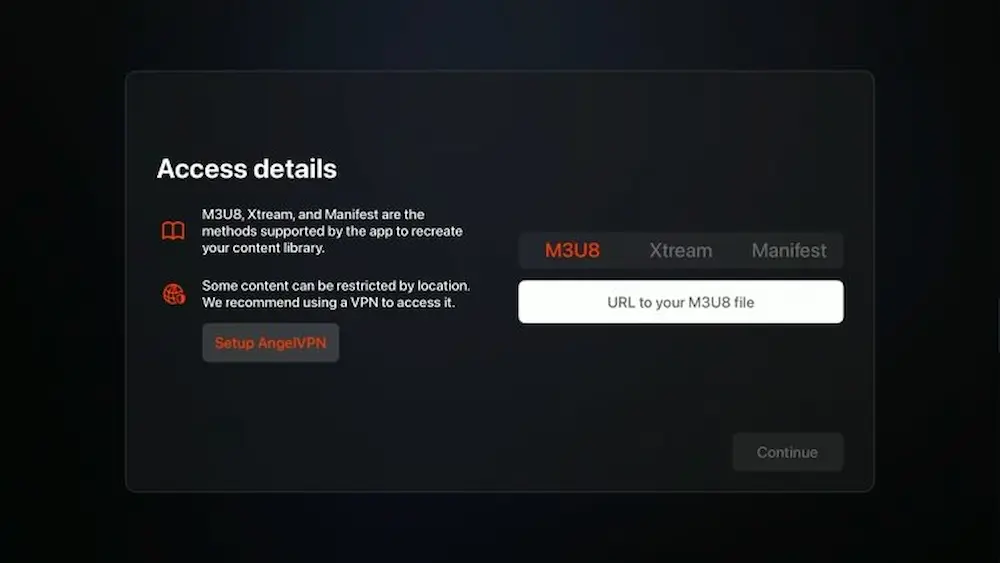
Load Channels and Content
The app will now load live channels, movies, and TV series automatically. This may take a few seconds.
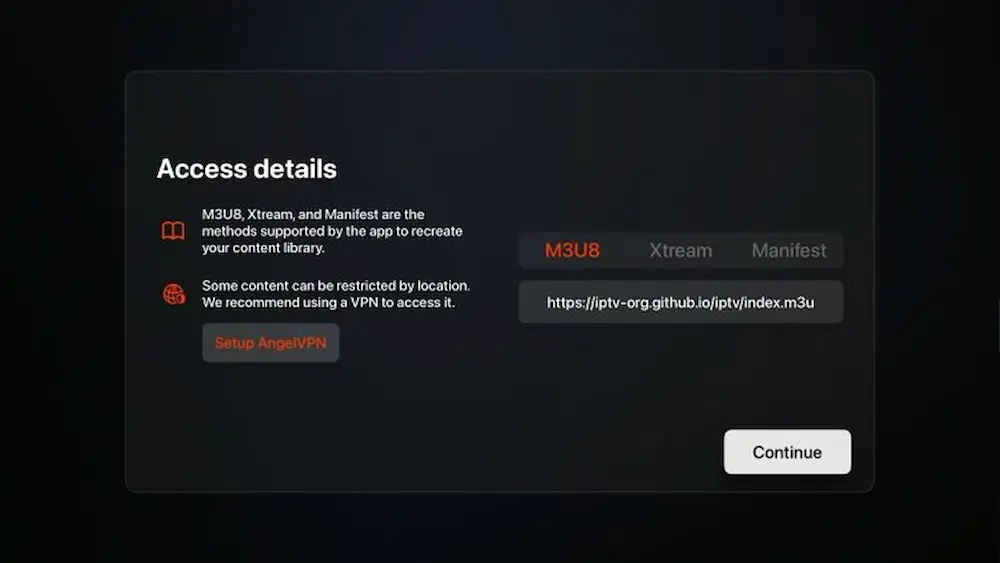
Wait for Setup to Complete
Please wait while the UHF IPTV app finishes syncing all channels and content.
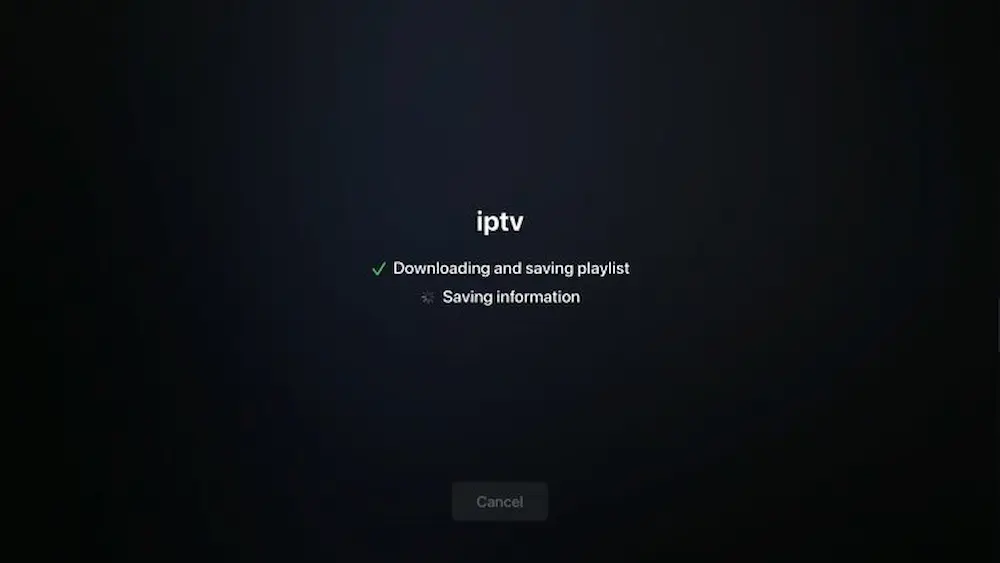
Access Live TV & Movies
Once setup is complete, you will see the full IPTV interface with access to live TV, movies, and series.
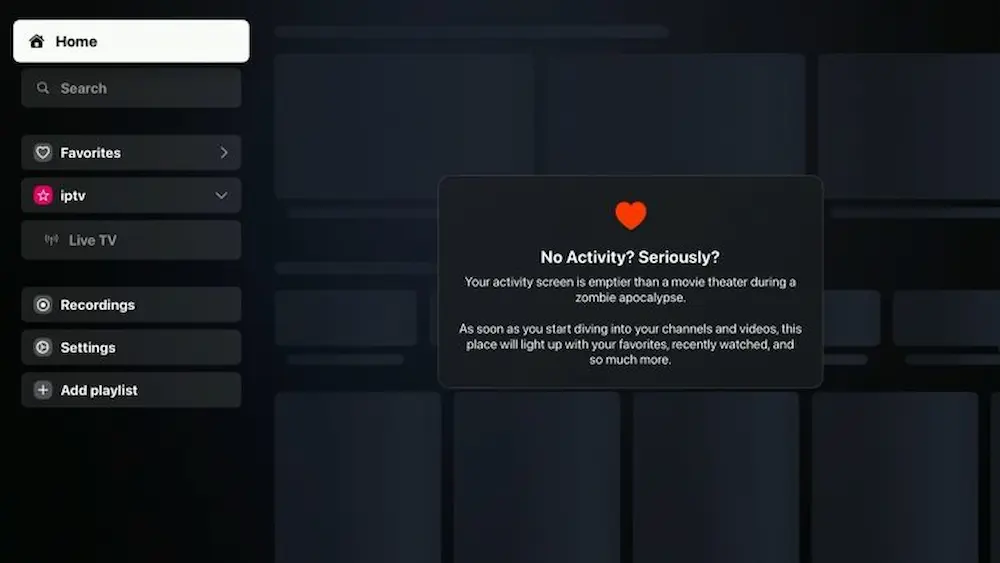
Enjoy UHF IPTV on Apple TV
That’s it! You have successfully installed and set up UHF IPTV on your Apple TV. Enjoy smooth streaming with premium content.